Switching your dog’s tracker to a new collar can change the angle, tightness, and signal exposure enough to make location updates look jumpy for the first walk. The goal is not to chase a perfect blue dot; it is to calibrate a dog GPS tracker so the device, collar, app, and your expectations line up before there is an urgent escape. A calm 20-minute test at home tells you more than guessing during a gate-dash scare.
What calibration really means after a collar swap
Most dog GPS trackers are not calibrated like a compass or a professional surveying tool. For everyday pet trackers, calibration means confirming that the device is mounted securely, has a clear enough view of the sky, reconnects properly to its app or handheld, reports from the right account and collar profile, and triggers alerts in the places where your dog is most likely to slip out.
That distinction matters. If a tracker is struggling because it is indoors, in poor cellular coverage, blocked by your dog’s body, or set to a slower update mode, tapping around in the app will not create perfect accuracy. A good setup process helps you separate normal GPS drift from a preventable collar-mounting or alert-setting problem.
Before the first test walk
Do these checks while your dog is relaxed and indoors, before you rely on the tracker outside:
- Charge the tracker enough for testing. Start with a comfortable battery margin so you are not troubleshooting low-power behavior at the same time.
- Confirm the tracker is assigned to the right pet profile. This is especially important in multi-dog households.
- Open the app or receiver before leaving. Let the device sync while you are still at home.
- Check that location permissions are allowed. Phone app permissions, background activity, and notifications can affect how quickly you see updates.
- Remove obvious physical blockers. Thick tag clusters, loose mounts, or a collar that rolls under the neck can make results harder to interpret.
Step 1: Mount the tracker in the same position every time
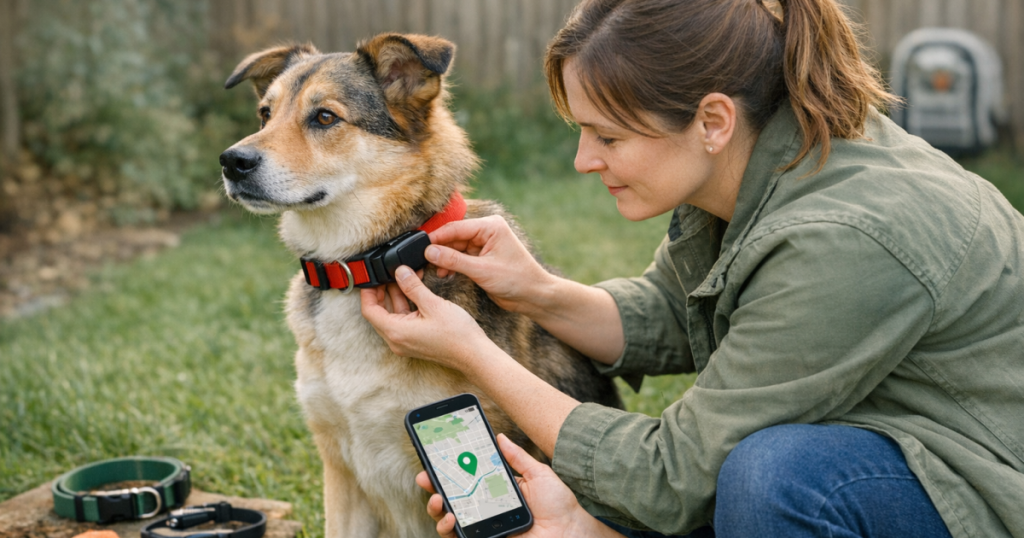
Place the tracker where the manufacturer intends it to sit, then treat that position as your baseline. For many collar-mounted devices, the most repeatable position is high on the neck rather than rotated under the throat. The point is consistency: if the tracker faces outward on Monday and hangs sideways on Tuesday, your tests are measuring the mount as much as the device.
After attaching it to the new collar, gently move the collar around your dog’s neck. The tracker should not swing like a pendant or pull the collar into a twisted shape. A tracker that slides to one side when your dog lowers their head may still report location, but it can make alert testing less predictable and may irritate your dog during longer wear.
Step 2: Recheck fit, comfort, and backup identification
A collar change is a good moment to slow down and look at the whole setup, not just the electronics. Make sure you can fit the collar safely according to the collar type, and confirm that the tracker does not press into the throat, rub behind the ears, or sit where a harness strap will bump it.
If your dog wears a separate ID collar, keep enough space between collars so hardware does not snag or push the tracker out of position. For a more detailed fit routine, see our guide to fitting a backup ID collar alongside a GPS tracker.
Small dogs need extra attention here because a tracker that is acceptable on paper can still feel bulky if the collar is narrow or soft. Deep-coated dogs may need the device positioned so fur does not bury it completely. For sighthounds, escape artists, and dogs with narrow heads, do not let the tracker setup replace a collar or harness style that already keeps them secure.
Step 3: Let the tracker reacquire outdoors
Take your dog outside to an open area such as a driveway, front yard, or quiet sidewalk. Give the tracker a few minutes with a clearer view of the sky before judging accuracy. Standing inside by a window, under a metal awning, or in a garage can create a misleading first result.
Open the app or handheld and look for the most recent update time, not only the dot on the map. A location that looks close but is several minutes old is less useful than a slightly imperfect location that is updating steadily. If your tracker has refresh, live tracking, or power-saving settings, use the normal setting you expect to use day to day, then repeat the test in a faster mode only if your device offers one.
Step 4: Walk a known route and compare behavior
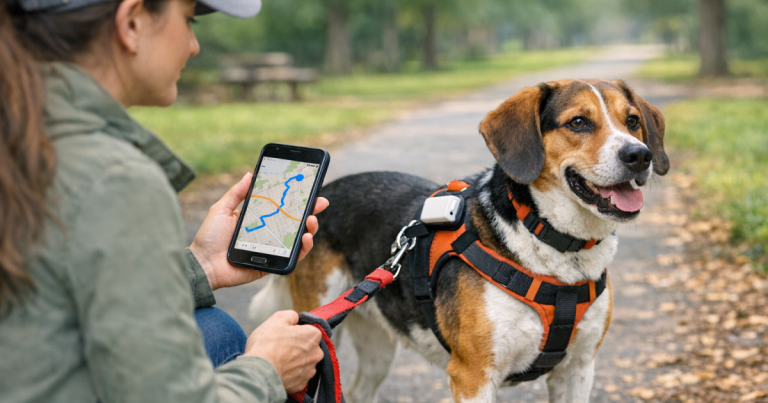
Choose a short route you know well: around the block, along the fence line, or from your driveway to a mailbox and back. Keep your dog on leash and watch for patterns rather than single-point perfection. Consumer GPS can wander by a bit, especially near tall buildings, heavy tree cover, or inside dense neighborhoods.
Use this simple route test:
- Start at a known point. Mark where you begin, such as the front steps or driveway edge.
- Walk for 5 to 10 minutes. Avoid stopping every few feet, because smooth movement makes update behavior easier to read.
- Check the path afterward. Look for whether the route roughly follows your walk, not whether every dot sits exactly on the sidewalk.
- Repeat once. If the second pass looks similar, your setup is probably repeatable enough for normal use.
If the map jumps across streets, stalls for long stretches, or places your dog far from the known route, do not assume the collar swap is the only cause. Network coverage, app permissions, satellite visibility, and update frequency can all contribute.
Step 5: Test the home zone before you need it
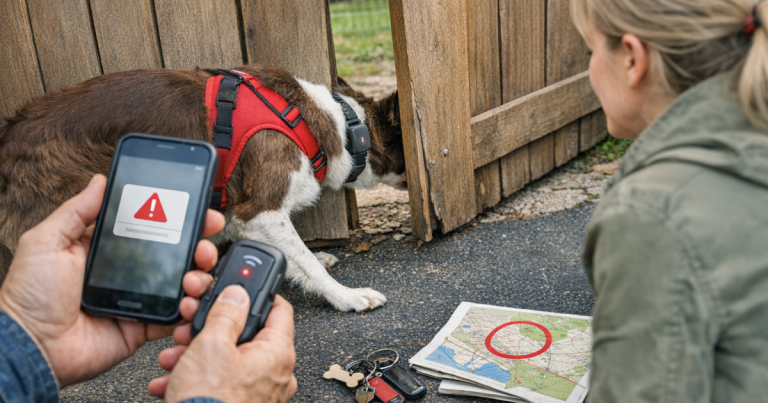
If your tracker uses a safe zone, home zone, virtual fence, or similar alert area, review the boundary after the collar change. Do not set it so tight that normal GPS drift creates constant false alarms. A boundary that looks tidy on a map may be too unforgiving around porches, side yards, detached garages, and narrow lots.
For a safe test, keep your dog leashed and walk just inside and just outside the alert boundary. Note how long the notification takes, whether everyone who should receive it actually gets it, and whether the alert language is clear enough to act on quickly. If your dog’s usual escape point is a side gate, combine tracker testing with physical prevention; our backyard guide explains how to dog-proof backyard gates before the alert ever has to matter.
Step 6: Troubleshoot the common post-swap problems
The dot is close but not exact
This is often normal GPS behavior. Test outdoors, compare the path over several minutes, and avoid judging accuracy from a single indoor point. If the location remains close enough to guide a searcher to the right yard, trail section, or street, the setup may be doing its job.
The tracker keeps rotating under the neck
The collar may be too loose, too narrow for the mount, or too flexible for the tracker’s weight. Refit the collar, check whether the mount is compatible with that collar style, and avoid attaching extra hardware beside the tracker if it pulls everything off-center.
Alerts arrive late
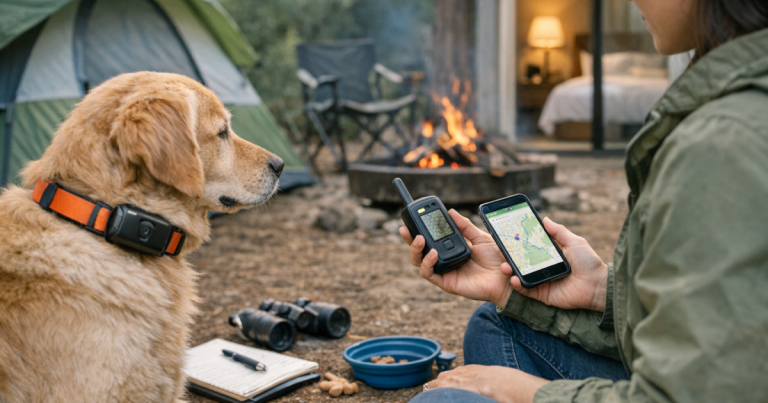
Check phone notification settings, app background permissions, tracker battery level, and local coverage. If the device depends on cellular service, weak coverage can delay updates. If it depends on a separate handheld, confirm the collar device and receiver are connected according to the manufacturer’s setup process.
The app still shows the old collar routine
Some owners change the physical collar but forget to review the pet profile, safe zones, notification recipients, or device name. Rename anything that helps your household act quickly, especially if one dog has a tracker and another does not.
Quick answers
How often should I calibrate a dog GPS tracker after moving it?
Run a short calibration check every time you move the tracker to a different collar, mount, or harness position. You do not need a full reset every day, but you should repeat the route and alert test after any change that affects how the device sits on your dog.
Can I do the whole test indoors?
No. Indoor checks are useful for charging, app access, account settings, and notification permissions, but location accuracy should be judged outdoors. Walls, roofs, garages, and metal structures can make a working tracker look worse than it is.
Should I reset the tracker to factory settings?
Usually not as a first step. A factory reset can create extra work and may remove settings you still need. Start with fit, mount position, app permissions, update status, and a known-route test before using reset options described by the manufacturer.
Keep the recovery plan bigger than the tracker
A well-calibrated tracker gives you a stronger starting point, but it is still one layer of a lost-dog plan. Collars can come off, batteries can run down, coverage can fade, and a frightened dog may move faster than the map refreshes. Physical ID, secure gates, good leash habits, and a practiced household response all matter.
After your collar swap test is complete, take a minute to confirm your dog’s tag information is readable and current. If you want to strengthen that non-digital layer, our guide to backing up a GPS collar with physical ID tags explains how to make the tracker easier to support when a neighbor, hiker, or front-desk clerk finds your dog first.
The best sign that your setup is ready is boring repeatability: the tracker stays put, the route looks reasonable, alerts reach the right people, and your dog moves comfortably. Do that quiet test now, and a future scare becomes a practiced response instead of a scramble.